Brand tone and instructions
Updated June 25, 2026
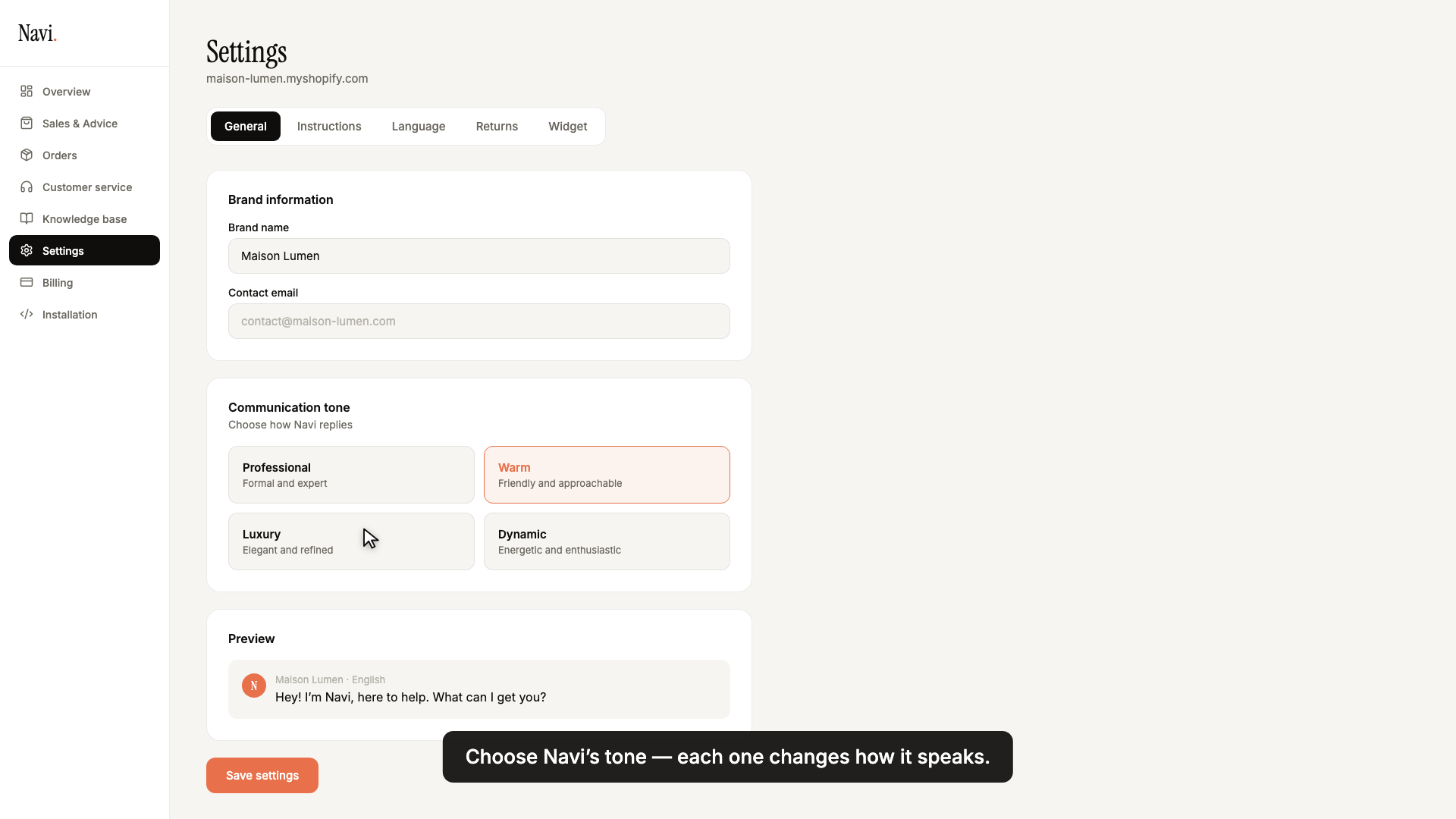
Navi speaks for your brand. Before you launch it, give it your name, your tone, and your few house rules. It's all in Settings → General, and changes apply right away.
Name and tone
- In your dashboard, open Settings, General tab.
- Enter your brand name: Navi uses it to introduce itself.
- Pick a tone of voice from four:
- Professional — formal and expert.
- Warm — friendly and approachable.
- Luxury — elegant and refined.
- Dynamic — energetic and enthusiastic.
The preview under the tones shows you straight away how Navi introduces itself with the tone you picked.
General instructions
Tone sets the color; instructions set the rules. In Settings → Instructions, the General instructions field applies to every agent (sales, orders, support).
Write what Navi should always do, in clear sentences:
Always offer the size guide before recommending a garment. Never promise a specific delivery date.
Keep instructions short and concrete (500 characters). One rule per idea: the sharper they are, the better Navi follows them.
Next
To steer Navi agent by agent (what it can say in sales, order tracking, support), move on to Guardrails and blocked topics.