Knowledge base
Updated June 25, 2026
For Navi to really know your store, give it your documents: return policy, size guide, FAQ, terms of sale. Navi answers from your content, cites its source, and makes nothing up.
It all happens in the Knowledge base section of the dashboard.
Upload a document
- Open Knowledge base.
- Drag and drop a file into the upload area, or click to choose one.
- Accepted formats: PDF or TXT, up to 10 MB per file.
Navi splits each document into small pieces ("chunks") to find the right info at the right moment. The chunk count shows per document.
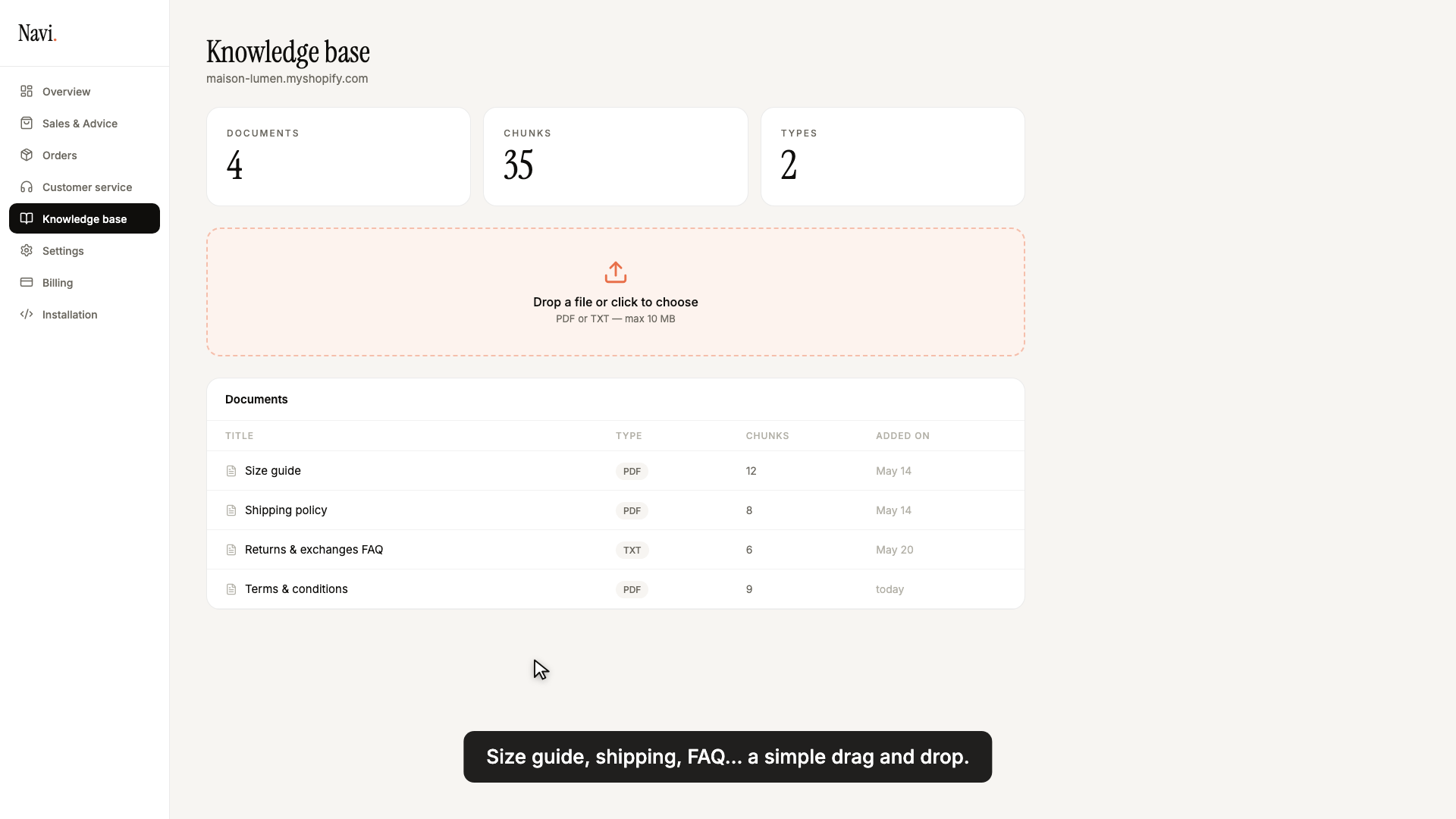
Manage your documents
The Documents list recaps every file: title, type, chunk count, date added. To remove a document, delete it from the list — Navi stops using it immediately.
Update your documents when your policies change. Navi always answers from the latest uploaded version — a stale document means wrong answers.
Next
Your return policy also has a dedicated, more structured setting (window, reasons, countries). See Policies (returns, shipping, FAQ).